3. Getting Started with Buildroot
The SD card Image sdcard.img provided on the AM62x-SDK-Download-page is all you need to get started and explore Buildroot on TI microprocessors.
The Buildroot Image provided has all the basic packages required to boot with Weston as default window manager. The user can install any new package and customize the filesystem as required.
Follow the steps mentioned in this page to create an SD card Image.
3.1. Hardware Setup
In addition to the SK EVM itself, the following hardware is needed:
USB Type-C 5V - 15V and 3A power supply
Micro-SD card reader
Micro-SD card (16GB or larger recommended)
USB Micro-B cable for UART serial communication
HDMI display and HDMI cable
USB mouse and Keyboard (For controlling the UI)
Ethernet cable (For network access)
3.2. Create SD Card using balenaEtcher
Download the default bootable SD card image available on the release page as
tisdk-buildroot-sdcard-image-am62xx-evm-<version>.imgfor Linux image ortisdk-buildroot-sdcard-image-rt-am62xx-evm-<version>.imgfor RT-Linux image.Download and install the balenaEtcher tool:
Balena Etcher is an open-source utility that can be installed on both Linux and Windows. Download the tool from this link and install it.
Flash the SD Card image to the SD card:
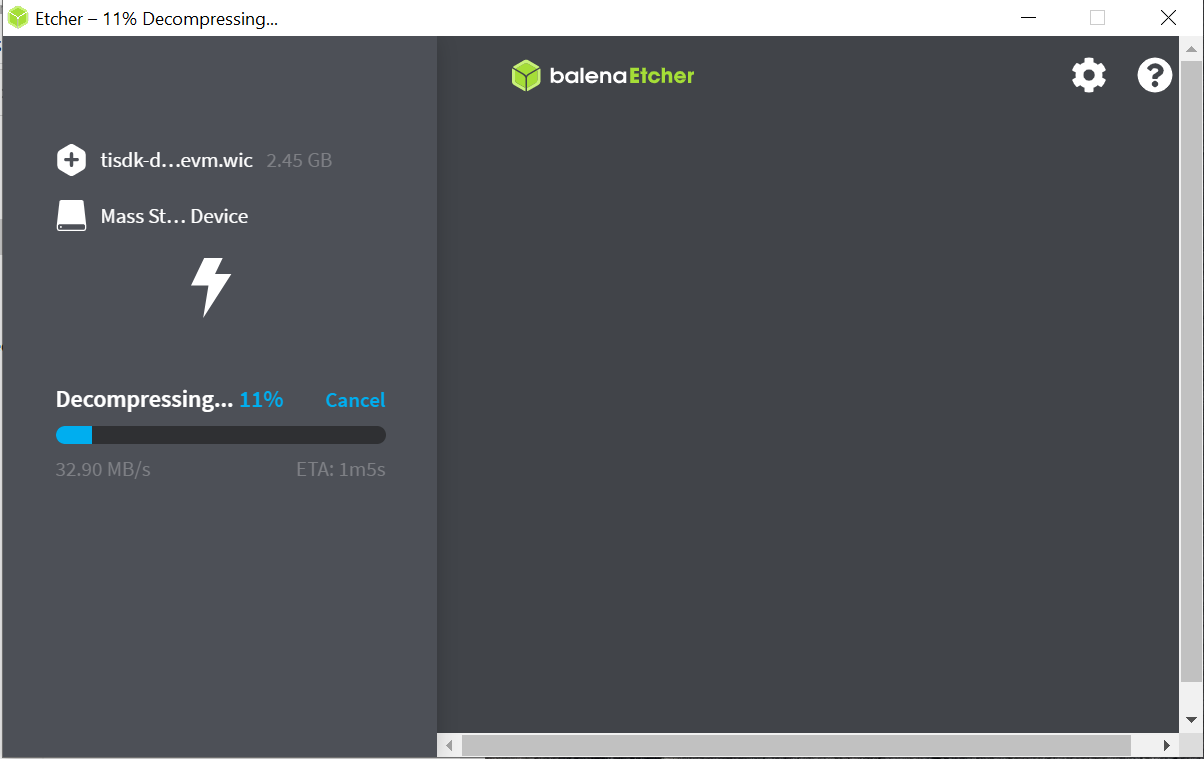
Insert a micro SD card into the USB SD card reader and start Etcher. Choose the sdcard image to be flashed, choose the USB SD card reader as the target, and then click “Flash”. Etcher will decompress the image and write it to the SD card, as shown below:
3.3. Set the EVM to SD card Boot mode
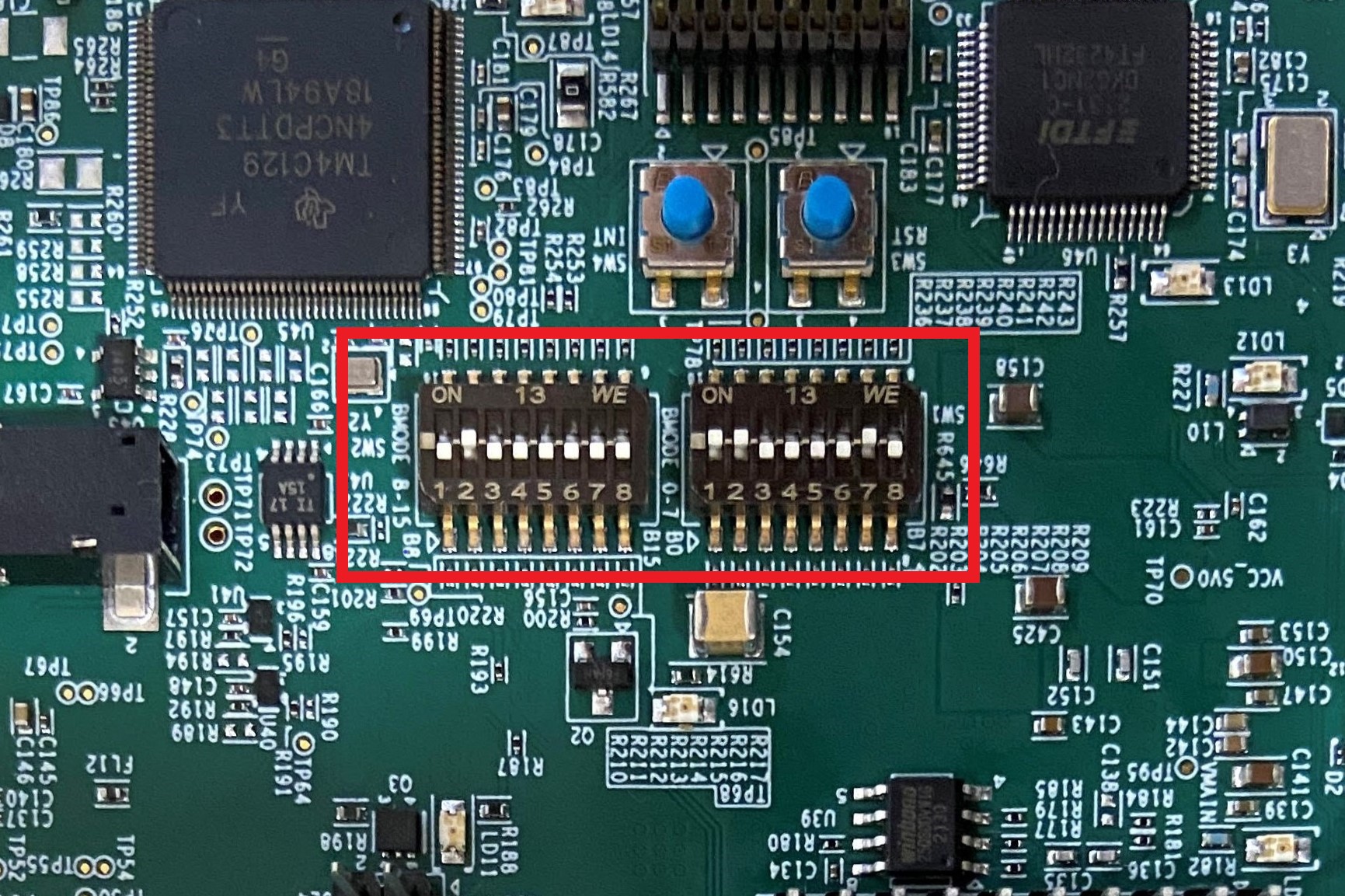
The simplest way to run Linux on the SK EVM is through an SD card. For that, the EVM will need to be configured for SD card boot. Refer to AM62x SK EVM User’s Guide for detailed information about boot mode configurations. For quick reference, the figure below shows the boot mode switch setting for SD card boot.
3.4. Boot and Validate Buildroot
Make sure to connect the Ethernet cable, HDMI Display, Mouse and Keyboard to the EVM. Insert the SD Card in the board and Power ON the EVM.
Booting to prompt will take around 12 seconds.
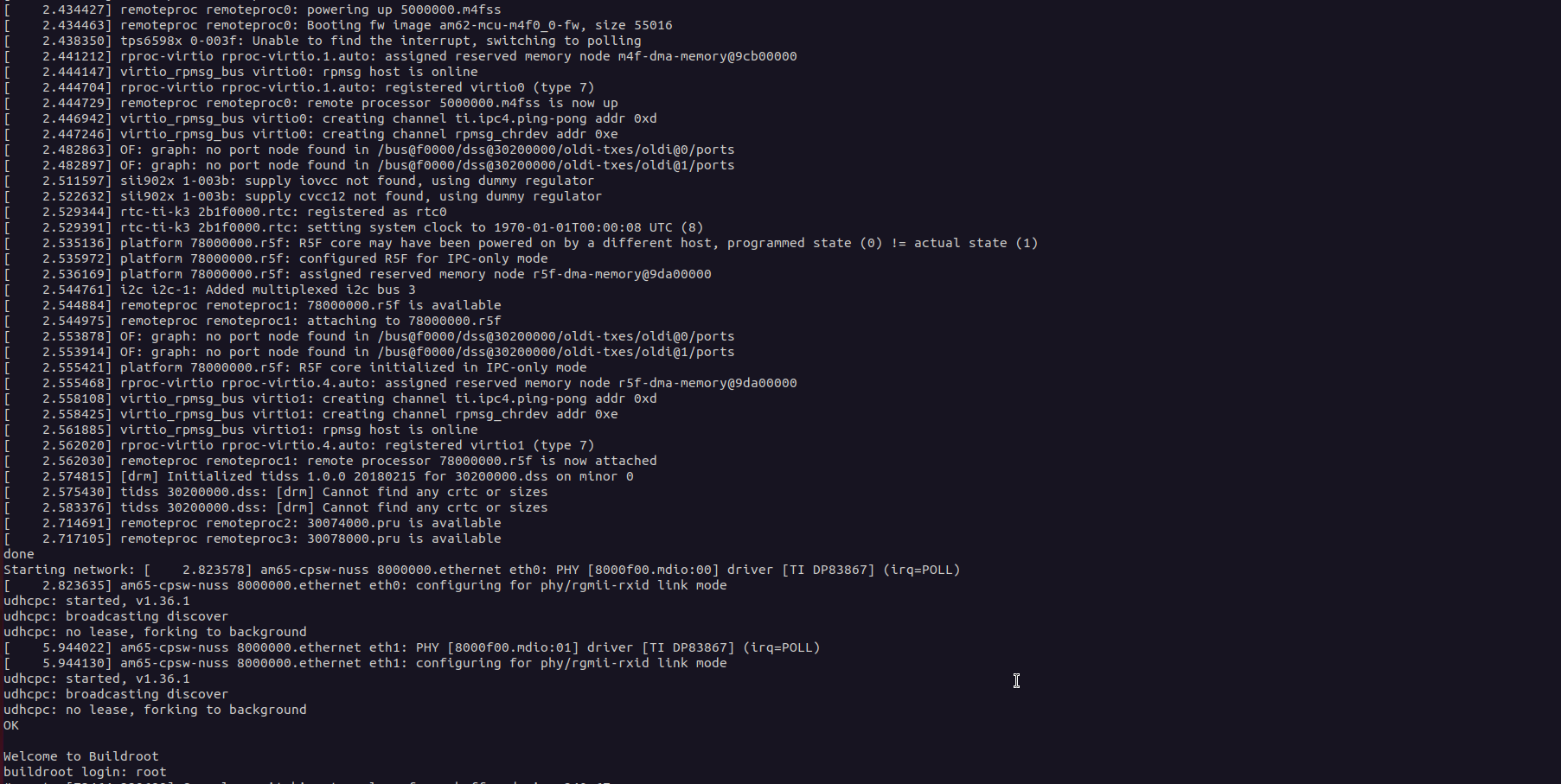
You’ve successfully booted Buildroot on AM62x.